
BookThatApp now has enabled 2FA for stores with staff accounts. This adds extra security by requiring both your password AND a special code from your phone. 📱
Why 2FA? 🤔
2FA protects your booking system from hackers - even if they get your password, they can't access your account without your phone!
Part 1: Enable 2FA for Staff 👥
Setting Up Staff Accounts
- Go to Settings in your BookThatApp admin
- Click Staff Accounts
- ✅ Check "Enable Staff Accounts"
- Enter employee details
- ✅ Check "Enable Two-Factor Authentication"
Part 2: Set Up Your Authenticator App 📲
1️⃣ Download Google Authenticator
iPhone: App Store Link Android: Play Store Link
2️⃣ Connect to BookThatApp
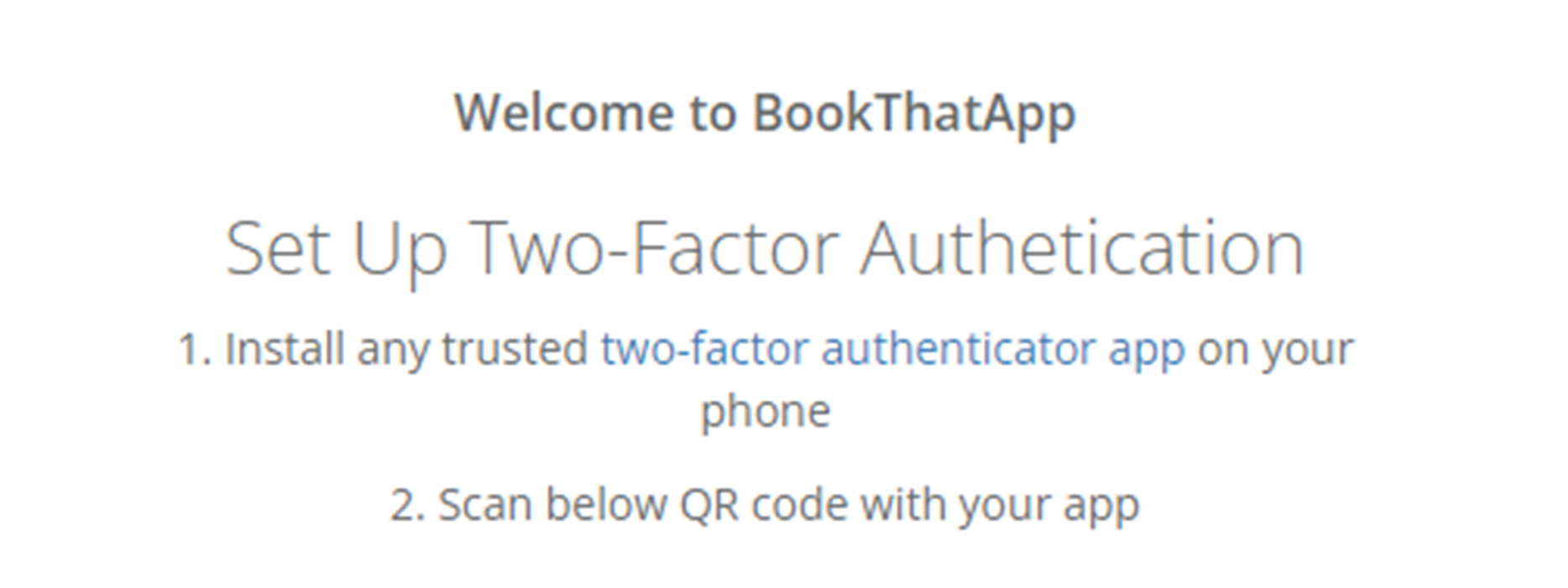
- Open Google Authenticator
- Tap "Scan a QR code"
- Point camera at the QR code on BookThatApp login page
- BookThatApp will appear in your authenticator app ✅
3️⃣ Complete Setup
- Tap BookThatApp in your authenticator app
- Copy the 6-digit code
- Enter code in BookThatApp login screen
- You're all set! 🎉
Daily Login Process 🔄
Every time you log in:
- Enter username & password
- Open Google Authenticator
- Get fresh 6-digit code from BookThatApp
- Enter code → Access granted! ✅
Codes change every 30 seconds for maximum security
Troubleshooting 🛠️
- Can't scan QR code? Make sure your camera has permission
- Code not working? Check the time on your phone is correct
- Lost your phone? Contact BookThatApp support to reset 2FA
Comments
0 comments
Please sign in to leave a comment.